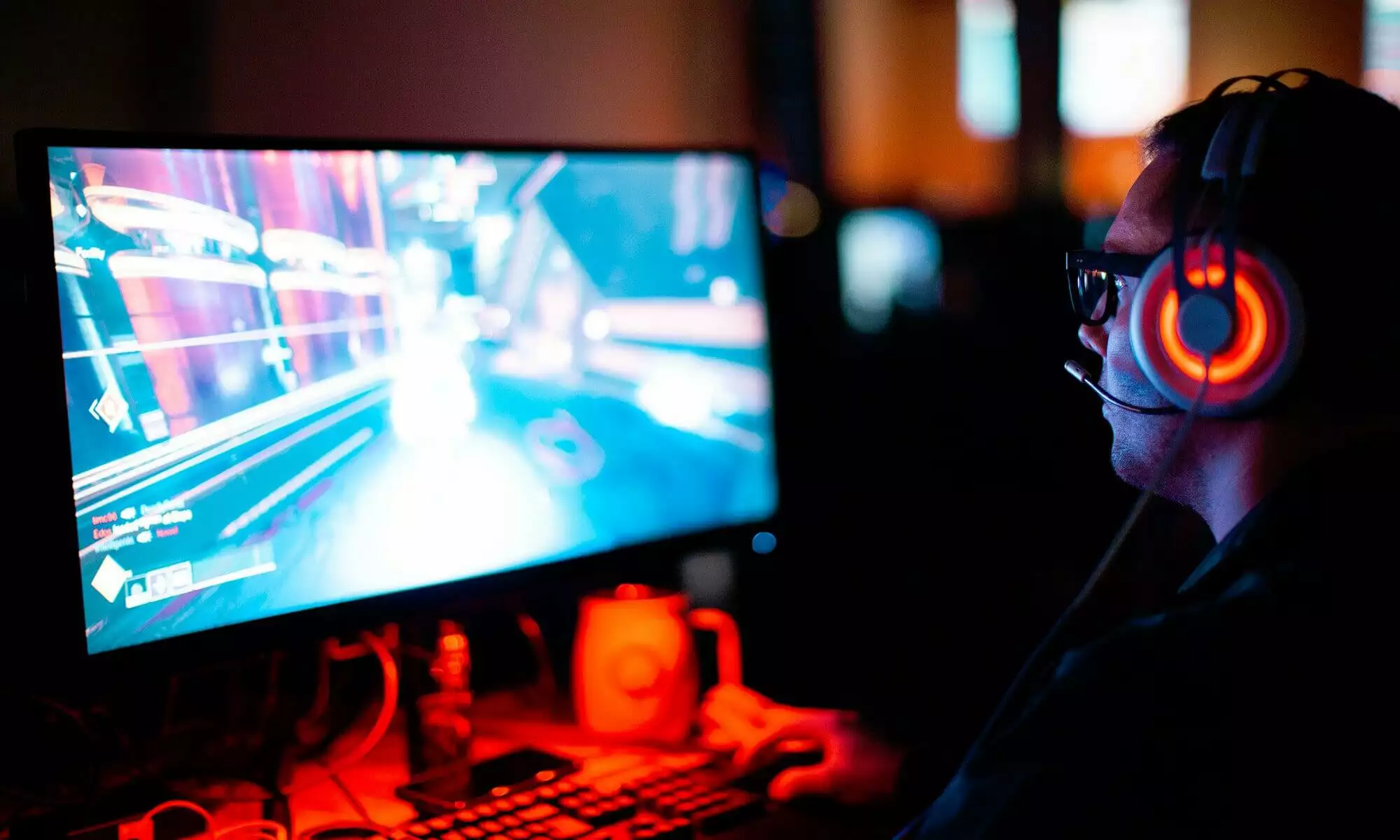
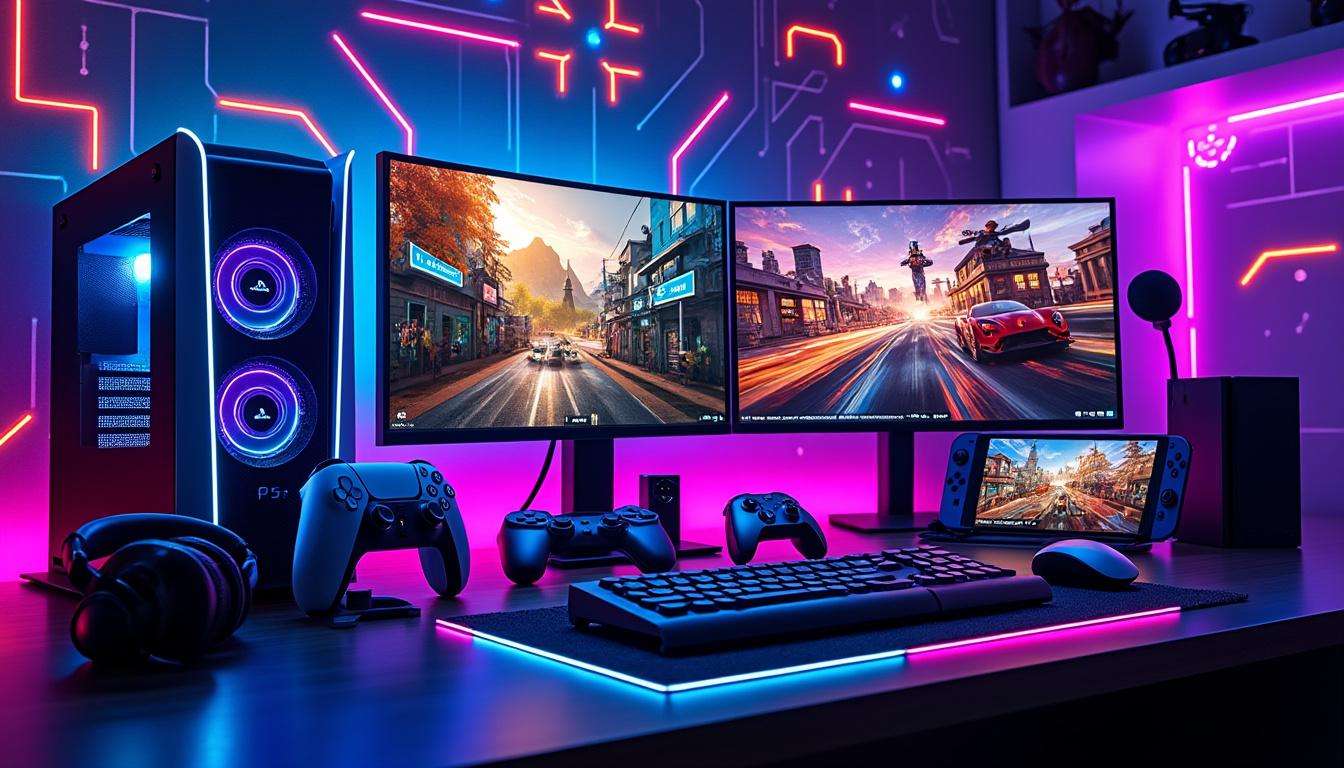
The rush after a perfect play lasts seconds. You need a reliable way to lock down those moments. This guide shows how to record and share game highlights from PC, PS5, Xbox Series X, and Nintendo Switch. You will get platform specific steps, practical settings, and editing tips. I use a fictional streamer, Kenny, as a test case. Kenny switches between PC and consoles during streams. He captures a clutch win on PS5, edits on PC, then uploads for social proof. This guide explains internal capture limits, external capture rigs, and best practices for video capture and streaming. Expect clear shortcuts, recommended recording software, and a hardware checklist. Follow the flow and keep your clips ready for editing and upload. Your next highlight will look pro. Strong clips help build an audience, improve reviews, and archive skill growth. Read on for step by step instructions, examples from Kenny, and links to hardware and setup guides that make the process painless.
Record Gameplay
This section explains core ideas behind gameplay recording across devices. Background capture runs on many machines. That method stores seconds or minutes of recent play. Manual recording gives full control over length and file type.
Why Record
Record to preserve proof of skill and to reuse footage for highlights. Clips help with coaching, clips help with social posts, and clips help with highlight reels. Kenny uses short clips for reels and longer clips for edits.
Key metric to watch is bitrate. Higher bitrate keeps visual fidelity during fast action. Lower bitrate reduces storage needs.
PS5 Capture Tips
PS5 records in the background and holds up to one hour of recent play. Use the Create button to save recent footage. Quick save defaults to three minutes when pressing the button twice. Change default clip length inside the system settings for longer reels.
Set video format to Most Compatible, MP4, prior to export. That removes extra conversion steps when you edit on PC. Trim clips in Media Gallery, then copy to USB or upload to the PlayStation mobile app linked to your account.
PS5 Quick Save
Kenny records a clutch win by tapping Create then Save Recent Gameplay. He trims on the console for quick uploads. For full edits he copies files to a PC and drops them into his editor.
Xbox Series X Tips
Xbox Series X keeps background capture active as well. Press the Xbox button then X to save the last 30 seconds. Use View to choose longer durations up to two minutes. Manual recording runs up to ten minutes on internal storage or one hour on external drive. New controllers include a Share button for instant saves.
Xbox Quick Save
Kenny uses the Share button for quick clips during matches. Footage uploads automatically to the Xbox network. Use the Xbox mobile app to manage clips and move files to a PC for editing.
Switch Capture
Nintendo Switch offers a single short save option. Hold the Capture Button to store the last 30 seconds. Longer capture requires an external solution. Use the Album to trim and the mobile app to transfer to phones for fast sharing.
Switch Quick Save
Kenny records short clips from handheld matches then moves them to a phone. For full sessions he uses an external capture card to record hours of footage.
PC Capture Guide
PC recording offers the most flexibility. NVIDIA ShadowPlay sits inside the GeForce Experience overlay. Press Alt Z to open overlays and save previous minutes of play. Steam includes a built in recording option with up to 120 minutes of background capture when enabled.
Choose recording software based on goals. OBS works for streaming plus local recording. Use hardware encoders for less CPU load. Kenny uses ShadowPlay for light saves and OBS for streaming with local recordings.
NVIDIA ShadowPlay
ShadowPlay records in the background and offers instant saves of recent gameplay. It integrates with streaming workflows and keeps files on the PC ready for editing. Use a stable drive and set a reasonable bitrate for your resolution.
External Capture
External capture solves platform limits and centralizes footage on a PC. Devices like Elgato HD60 handle full HD at 60 fps or 4K passthrough with low latency. Use an HDMI splitter when latency affects gameplay display. Remember to disable HDCP on consoles when recording from some sources to avoid protected streams.
Elgato HD60 Tips
Use an SSD for long sessions. Record raw files then transcode for upload. Kenny pairs his Elgato with OBS for simultaneous stream and local recording. Older capture models remain useful for budget builds.
- HDMI splitter for zero delay display and capture
- External SSD for long session storage
- USB 3 port for reliable throughput
- Disable HDCP on consoles when recording gameplay
If you need a quick hardware reference check an HDMI switch guide for mixed PS5 and PC setups at HDMI switch for PS5 and PC.
Use a simple editor for clipping and a timeline editor for montages. Export in MP4 for broad compatibility. For streaming highlights, compress to match platform limits. Share short reels to social platforms first, then upload full edits to long form channels.
Trim And Export
Kenny trims for punchy intros, then adds a short overlay and audio spike. He exports at 1080p60 for most platforms and at 4K30 for feature uploads. Use consistent metadata to keep files organized.
Pro tip: use examples from recent releases to boost discovery. For instance, highlight moments from the latest racing launch, see the Forza Horizon 6 launch coverage for reference on event driven clips.
Final workflow checklist for fast delivery. Follow these steps to produce reliable clips.
- Enable background gameplay recording on your device
- Set file output to MP4 for easy editing
- Use external capture for long sessions from consoles
- Record with bitrate suited to your resolution and motion
- Trim, add audio, then export with consistent naming
How do I save a recent clip on PS5
Press Create on the controller and choose Save Recent Gameplay. Use the settings menu to change default durations and set file format to MP4 for easy transfer.
What limits exist on Xbox Series X capture
The console saves short background clips by default. Use the guide to start manual records which run longer when using external storage. New controllers include a Share button for instant saves.
How to record long Switch sessions
Use an external capture card connected to a PC. Hold the Capture Button for quick 30 second clips, then move files to a PC for full session edits. Disable HDCP if you face protected stream blocks.
Which recording software works for streaming and local capture
OBS provides streaming plus local recording. NVIDIA ShadowPlay offers light background saves. Steam overlay supports up to 120 minutes of background capture on Steam titles.